


Deleted Photo Recovery: Getting Images Back from Your SD Card
The accidental deletion of photos from an SD card creates significant stress because it includes precious memories. The deletion of photos doesn’t necessarily means permanent loss as recovery option exists. Users with basic computer knowledge can easily recover deleted photos from an SD card using various methods available on Windows and Mac devices.
Table of contents
- Deleted Photo Recovery: Getting Images Back from Your SD Card
- Common Reasons Your Photos Vanish from an SD Card
- First Steps to Take Just After You Accidentally Delete Something
- Window’s Built-In Tools That Might Save Your Photos
- Mac’s Built-In Tools That Might Save Your SD Card Photos
- How to Bring Back Lost Photos with SD Card Recovery Software?
- Smart Habits to Keep Your SD Card Photos Safe in the Future
- Conclusion
Common Reasons Your Photos Vanish from an SD Card
The process of photo recovery becomes easier when you understand why photos tend to disappear. Here are a few of the most common reasons:
- Deletion by accident
You can press a wrong key, or format the card, not realizing something important was still on it, all the stored photos gets deleted.
- File system errors
SD card develop errors when the writing process is interrupted or when they aren’t ejected properly. The photos remains there on the card but they become invisible or corrupted.
- Corruption or physical damage
With time, SD cards wear out. Moreover, photos stored in the card become inaccessible after a card failure, physical damage to the card or sudden power cut.
- Virus or Malware
The SD card can become infected due to malware which results in hiding or erasing the photo files stored on it.
First Steps to Take Just After You Accidentally Delete Something
Here are the few thing you should do first after the discovery of deleting photos from the SD card:
- Stop using the SD card immediately as new data written to the card will increase risk of deleted files become overwritten making the recovery process challenging.
- Check the Trash/ Recycle Bin folder after you accidentally delete photos from SD card as deleted files move to this folder on Windows or Mac respectively.
- Don’t format the SD card or save new files on the card.
Window’s Built-In Tools That Might Save Your Photos
You should attempt the built-in features of your Windows system before installing additional software program for recovering lost photos.
Check the Recycle Bin
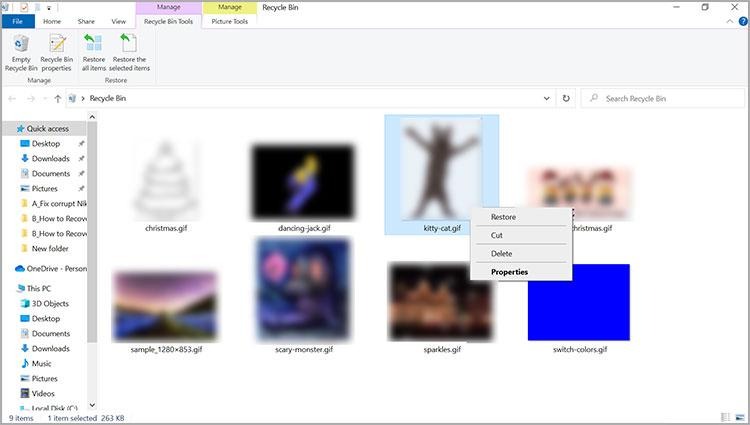
The photos deleted from an SD card connected to your Windows system goes to the Recycle Bin instead of disappearing immediately. Check the Recycle Bin folder to search for the lost photos then right-click on the needed photo and select Restore option to put the file backs to its original location.
Restore from Windows File History
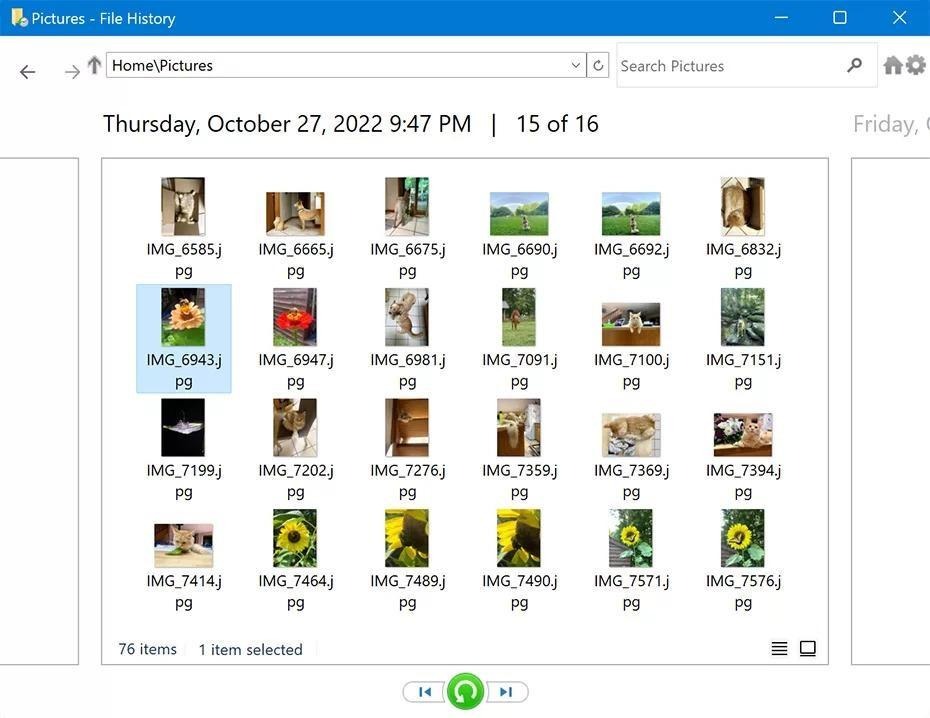
File History automatically backs up your Windows data so one can easily restore it if something goes wrong.
- Open Control Panel >> System and Security >> File History >> Restore personal files >> choose the deleted photo(s).
- Click the green Restore button.
Mac’s Built-In Tools That Might Save Your SD Card Photos
Photos become easily recoverable when you know exactly where to search for them on Mac.
Check the Trash
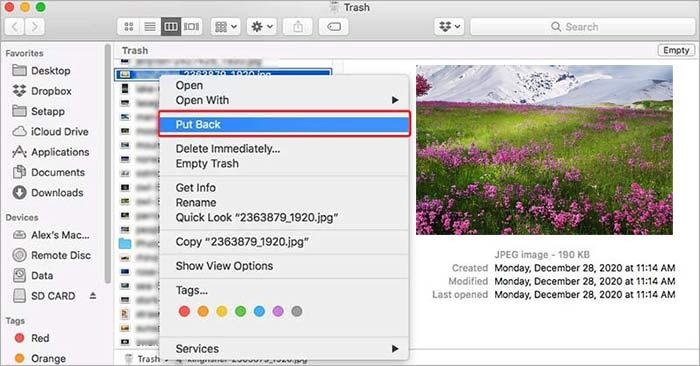
The process of deleting photos from an SD card connected to the Mac ends up in the Trash instead of instant disappearance. Click on the Bin icon on the Dock to search for your files, right-click on it and select Put back option. The photo will return to its original location once the operation competes.
Check the ‘Recently Deleted’ folder in Photos
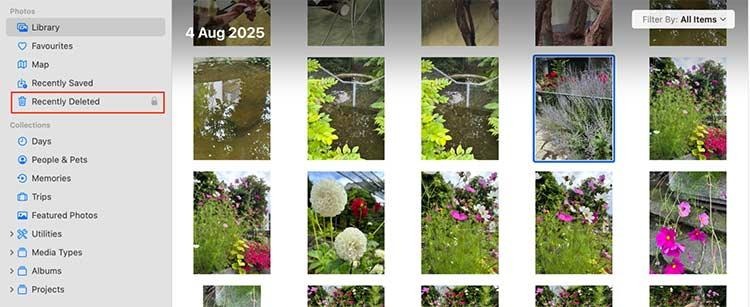
The Photos app in the Mac has a Recently Deleted folder where removed images and videos are stored for thirty days. To get the images back, simply select the ones you need and tap Recover.
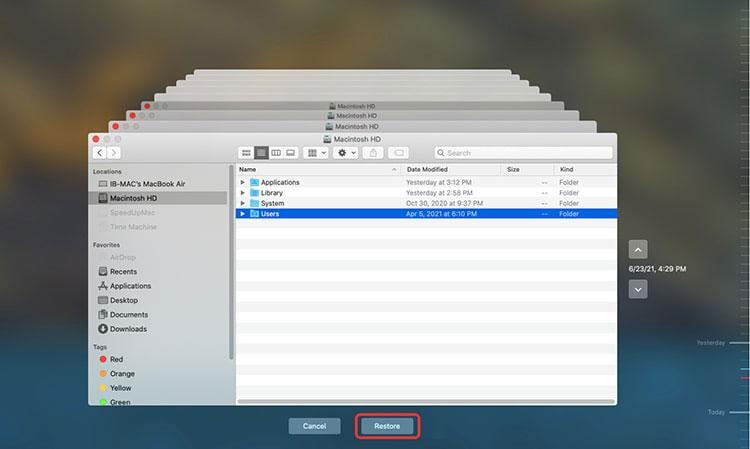
Restore from Time Machine Backup
Apples’ Time Machine backup system allows you to restore deleted photos from the data backed on the external drive.
- Connect your backup drive to the Mac.
- Open Time Machine, navigate through the timeline until you find a point before the photo was deleted.
- Click Restore to recover the photos when you find it.
How to Bring Back Lost Photos with SD Card Recovery Software?
The built-in tools of Windows and Mac failed to work, but there is no need to panic. There are numerous recovery software that can scan your SD cards to retrieve deleted photos. Choose the software, which is secure and supports your photo file format.
Use Stellar Photo Recovery to scan the SD card for the deleted photos to restore them. This photo recovery software helps get back the lost photos, videos and audio of all popular file format from the memory card, digital camera, HDDS, SSDs, etc.
- Follow the setup instruction on the official website to install Stellar Photo Recovery software after you download it.
- Use a card reader or insert your card directly to Windows or Mac for the recovery program to detect it.
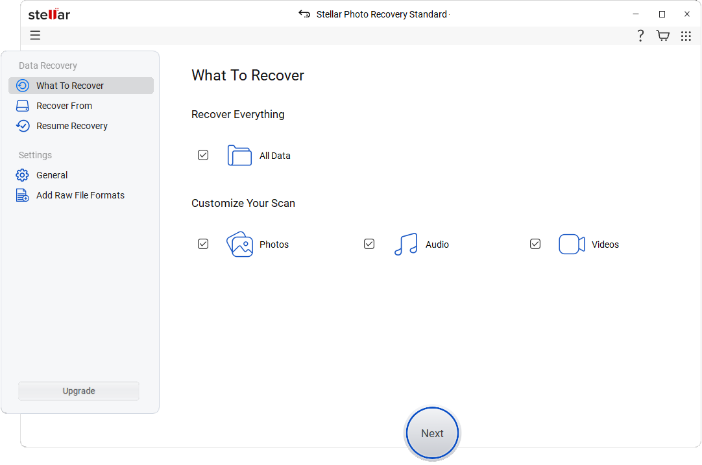
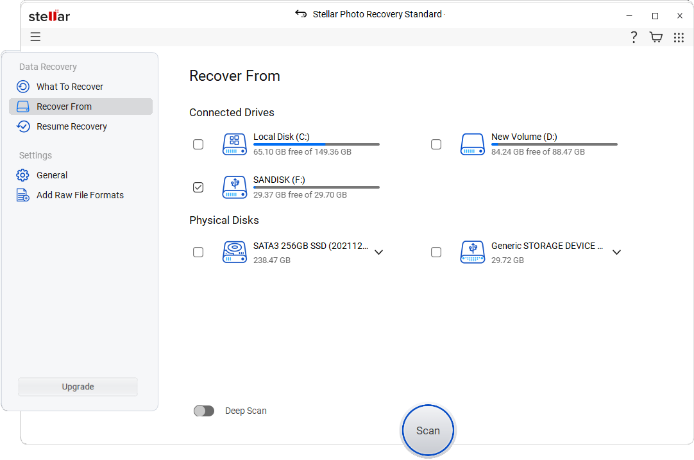
- Begin the recovery process by running the software while selecting the file type and your SD card from the drive list and initiate the scanning process by clicking Scan button.
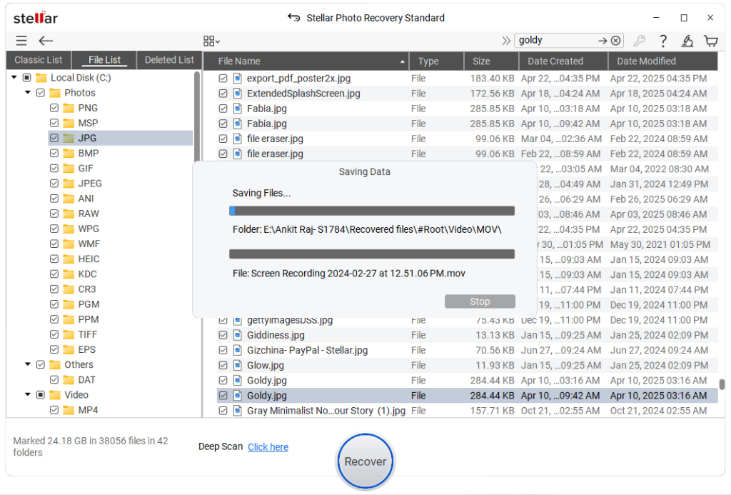
- You will get a list of files that can be recovered and pick the photos you want back before saving them to a protected location on your Windows or Mac.
Smart Habits to Keep Your SD Card Photos Safe in the Future
- Ensure the SD card has enough unoccupied space to maintain it performance and prevent card errors from occurring.
- Invest in well-known brand SD card.
- Replace the SD card before it breaks down if you are using the same one for multiple years.
- Regular backup should be done to copy your SD card data either to your Windows/Mac or external drive or Cloud storage as a protective measure to safeguard your data.
Conclusion
SD card photo loss creates panic, but most photo files remain recoverable. The solution to this problem becomes quick when you check the Recycle Bon, Trash and or implement backup methods like File History or Time Machine backup. If everything failed to work, Stellar Photo Recovery software provides the most effective solution to retrieve your photo files.
Remember, never travel without travel insurance! And never overpay for travel insurance!
I use HeyMondo. You get INSTANT quotes. Super cheap, they actually pay out, AND they cover almost everywhere, where most insurance companies don't (even places like Central African Republic etc!). You can sign-up here. PS You even get 5% off if you use MY LINK! You can even sign up if you're already overseas and traveling, pretty cool.
Also, if you want to start a blog...I CAN HELP YOU!
Also, if you want to start a blog, and start to change your life, I'd love to help you! Email me on johnny@onestep4ward.com. In the meantime, check out my super easy blog post on how to start a travel blog in under 30 minutes, here! And if you just want to get cracking, use BlueHost at a discount, through me.
Also, (if you're like me, and awful with tech-stuff) email me and my team can get a blog up and running for you, designed and everything, for $699 - email johnny@onestep4ward.com to get started.
Do you work remotely? Are you a digital nomad/blogger etc? You need to be insured too.
I use SafetyWing for my digital nomad insurance. It covers me while I live overseas. It's just $10 a week, and it's amazing! No upfront fees, you just pay week by week, and you can sign up just for a week if you want, then switch it off and on whenever. You can read my review here, and you can sign-up here!








 As you know, blogging changed my life. I left Ireland broke, with no plan, with just a one-way ticket to Thailand
and no money. Since then, I started a blog, then a digital media company, I've made
more than $1,500,000 USD, bought 4 properties and visited (almost) every country in the world. And I did it all from my laptop as I
travel the world and live my dream. I talk about how I did it, and how you can do it too, in my COMPLETELY FREE
Ebook, all 20,000
words or so. Just finish the process by putting in your email below and I'll mail it right out to you immediately. No spam ever too, I promise!
As you know, blogging changed my life. I left Ireland broke, with no plan, with just a one-way ticket to Thailand
and no money. Since then, I started a blog, then a digital media company, I've made
more than $1,500,000 USD, bought 4 properties and visited (almost) every country in the world. And I did it all from my laptop as I
travel the world and live my dream. I talk about how I did it, and how you can do it too, in my COMPLETELY FREE
Ebook, all 20,000
words or so. Just finish the process by putting in your email below and I'll mail it right out to you immediately. No spam ever too, I promise!